Apple ProRes, developed by Apple Inc., is an intermediate codec widely adopted in professional video editing workflows. It delivers high-quality, frame-accurate editing performance, making it a favorite among filmmakers, broadcasters, and YouTube creators. The format comes in several variants: Apple ProRes 4444, Apple ProRes 422 (HQ), Apple ProRes 422, Apple ProRes 422 (LT), and Apple ProRes 422 (Proxy). Apple describes ProRes as “visually lossless.” This means that while some data is removed during compression, the resulting images do not show noticeable degradation-even after multiple generations of encoding.
However, ProRes is not designed as a distribution codec for finished work. Its massive file sizes (a few minutes of 4K ProRes 4444 can exceed 10 GB) and limited playback compatibility outside macOS make it impractical for everyday sharing, streaming, or archiving. That’s why many professionals need to convert ProRes to more common formats such as H.265 MP4, H.264, MKV, AVI, or MOV. Among these, H.265 (HEVC) MP4 offers the best balance: it provides roughly 50% better compression than H.264 while maintaining equivalent visual quality, making it ideal for preserving the near-lossless nature of ProRes in a much smaller file.
If you are looking for a reliable way to transcode Apple ProRes to H.265 MP4 without sacrificing quality, this article will guide you step by step. We will also introduce the best tool for the job and explain how to achieve truly lossless or visually lossless results.
Why H.265 MP4 is the Best Choice for ProRes Conversion
Before diving into the conversion process, let’s understand why H.265 MP4 is superior to older formats like H.264 when handling ProRes source material.
- Better compression efficiency – H.265 can reduce file size by up to 50% compared to H.264 at the same perceptual quality. For a 1‑minute ProRes 422 clip (≈1.5 GB), an H.265 MP4 export can be as small as 50‑100 MB with minimal quality loss.
- Support for higher bit depths and HDR – H.265 natively supports 10‑bit and 12‑bit color, as well as HDR metadata (HDR10, HLG). This is crucial when converting ProRes 4444, which often contains alpha channels and deep color information.
- Wide but growing compatibility – Most modern devices (smartphones, smart TVs, game consoles) and platforms (YouTube, Vimeo, Netflix) accept H.265. For older devices, you can always keep a separate H.264 copy.
- Preserves fine details – With a sufficiently high bitrate (e.g., 20‑30 Mbps for 4K), H.265 can retain the “visually lossless” quality of ProRes while drastically reducing storage and bandwidth requirements.
Given these advantages, learning how to convert ProRes video to H.265 MP4 with lossless quality is a valuable skill for any video professional.
Recommended Tool: Acrok Video Converter Ultimate
To achieve lossless or near‑lossless conversion from ProRes to H.265 MP4, you need a powerful yet easy‑to‑use transcoder. Standard free tools like HandBrake often struggle with ProRes files-users report jerky motion, color shifts, or long processing times. After testing multiple solutions, we highly recommend Acrok Video Converter Ultimate.
Acrok Video Converter Ultimate is a professional Apple ProRes Converter that supports all ProRes variants: ProRes 4444, ProRes 422 HQ, ProRes 422, ProRes 422 LT, and ProRes 422 Proxy. It runs on both Windows and Mac, and offers hardware acceleration (Intel QSV, NVIDIA NVENC, AMD VCE) to speed up conversion without quality loss. With Acrok, you can convert ProRes 422 to H.265 MP4, convert ProRes 4444 to H.265 MP4, or transcode ProRes to almost any other format-MP4, MOV, MKV, AVI, WebM, and even audio formats like MP3, AAC, or FLAC.


Key features that make Acrok the best ProRes to MP4 Converter:
- Batch conversion – Process hundreds of ProRes files at once.
- Lossless output option – You can choose “Lossless” encoding or set a high constant quality (CRF) value to preserve every bit of detail.
- Parameter fine‑tuning – Adjust resolution, frame rate, bitrate, codec, pixel format (4:2:0, 4:2:2, 4:4:4), and HDR metadata.
- Built‑in video editor – Trim, crop, add watermarks, or adjust brightness/contrast before conversion.
- Preview window – Check the output quality in real time.
Whether you are a solo creator or part of a post‑production house, Acrok Video Converter Ultimate simplifies the process of converting ProRes to H.265 MP4 while maintaining the highest possible fidelity.
Step‑by‑Step Guide: Convert ProRes to H.265 MP4 with Acrok
Follow these steps to transcode your ProRes files to H.265 MP4 without losing quality. The screenshots below are from the Mac version, but the Windows version follows the same workflow.
Step 1: Download and Install Acrok Video Converter Ultimate
Go to the official Acrok website, download the appropriate version for your operating system (Windows or macOS), and install it. The software offers a free trial that lets you convert the first few minutes of any video-enough to test the quality.
Step 2: Add Your ProRes Files
Launch Acrok Video Converter Ultimate. Click the “Add Files” button on the top left, or simply drag and drop your ProRes MOV or MXF files into the main window. Acrok supports batch processing, so you can add an entire folder of ProRes clips. Each file will appear as a separate row.
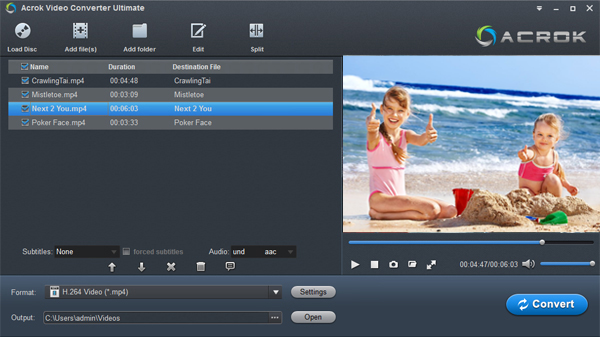
Pro tip: If you have multiple ProRes clips that you want to merge into a single H.265 MP4 file, select them all and check the “Merge into one file” option at the bottom.
Step 3: Select H.265 MP4 as the Output Format
Click the “Profile” dropdown next to each file (or use the “Apply to All” button to set the same format for all files). In the profile list, go to Common Video → MP4 and then choose H.265 + MP4 (sometimes labeled as HEVC/H.265). You will see several presets: “H.265 MP4 (High Quality)”, “H.265 MP4 (Lossless)”, or “H.265 MP4 (Small Size)”. For lossless conversion, select “Lossless” or “High Quality” preset.
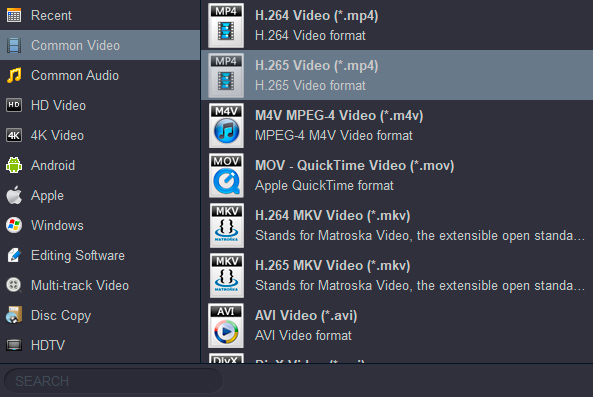
If you want to convert ProRes 4444 to H.265 MP4 while preserving the alpha channel (transparency), make sure to choose a profile that supports 4:4:4 chroma subsampling. Acrok’s advanced settings allow you to change the pixel format to YUV444 or RGB.
Step 4: Fine‑Tune Video Parameters (Optional but Recommended)
To truly achieve “lossless quality,” you need to adjust a few parameters. Click the “Settings” button (gear icon) next to the profile name. A new window will open with codec options:
- Video Codec – Keep as H.265 (HEVC).
- Frame Rate – Select “Same as source” (e.g., 23.976, 24, 25, 30, 50, or 60 fps). Changing frame rate can cause judder.
- Resolution – Choose “Same as source” (e.g., 1920×1080, 3840×2160). Downscaling reduces quality.
- Bitrate – For visually lossless results, use Constant Quality (CRF) mode. Set CRF to 18 for H.265 (lower = better quality; 18 is visually lossless for most content). Alternatively, use a high variable bitrate (VBR): 35‑50 Mbps for 4K, 15‑25 Mbps for 1080p.
- Pixel Format – If your source is ProRes 422 (4:2:2), you can keep it as YUV422. For ProRes 4444, select YUV444 or RGB24 to retain full color and alpha.
- Audio – Keep original track or re‑encode to AAC 256 kbps for compatibility. Uncheck “Audio” if you only need video.
After adjusting, click “OK” to save.
Step 5: Start Conversion
Click the “Convert” button (red icon) at the bottom right. Acrok will begin transcoding your ProRes files to H.265 MP4. Thanks to hardware acceleration, a typical 10‑minute 4K ProRes 422 clip converts in under 3‑5 minutes (depending on your CPU/GPU). You can monitor progress in the queue.
Step 6: Verify the Output
Once conversion finishes, click “Open Output Folder” to locate your new H.265 MP4 files. Play them on your preferred media player (VLC, PotPlayer, or QuickTime with HEVC plugin). Compare side‑by‑side with the original ProRes-under normal viewing conditions, you should see no discernible difference.
Tips for Achieving Truly Lossless ProRes to H.265 Conversion
While H.265 is always lossy (it cannot be 100% mathematically lossless like ProRes or uncompressed), you can get visually lossless results that are indistinguishable from the original. Here’s how:
- Use Constant Quality (CRF) instead of fixed bitrate – CRF mode allocates more bits to complex scenes and fewer to simple ones, preserving perceptual quality. A CRF value of 17‑18 for H.265 is widely considered visually lossless.
- Keep the same color space and bit depth – If your ProRes file is 10‑bit (ProRes 4444 or 422 HQ), ensure Acrok’s H.265 encoder is set to “10‑bit” or “Main10” profile. This avoids banding in gradients.
- Avoid unnecessary filtering – Do not apply deinterlacing, denoising, or sharpening unless your source requires it. Set all filters to “Off” or “Same as source”.
- Test a short representative clip – Before converting an entire timeline, export 10‑20 seconds containing fast motion, dark areas, and fine textures. Check for artifacts like blockiness, ringing, or color shifts.
- Keep the original ProRes master – Always archive your ProRes files. The H.265 MP4 is for distribution and daily use; the master remains untouched for future re‑exports.
Common Use Cases for Converting ProRes to H.265 MP4
| Use Case | Why H.265 MP4 is ideal |
|---|---|
| Sending dailies to remote clients | Small file sizes, fast upload, no quality complaints |
| Creating a offline editing proxy | H.265 at low bitrate (2‑5 Mbps) preserves detail while saving space |
| Uploading to streaming platforms | YouTube, Vimeo, and Frame.io accept H.265 with HDR support |
| Archiving completed projects | 50‑80% space savings compared to ProRes, with near‑identical quality |
| Playback on smart TVs and phones | Native support on all modern devices (iPhone 6s and later, Android 7+, Fire TV, etc.) |
Frequently Asked Questions
Q: Can Acrok Video Converter Ultimate convert ProRes on Windows?
Yes, Acrok offers a native Windows version that fully supports Apple ProRes decoding. You do not need any additional codec packs.
Q: Is it really lossless? H.265 is lossy by nature.
You are correct. “Lossless” in this context means visually lossless-no perceptible difference when viewed on a typical monitor. For 100% mathematically lossless conversion, you would need to use an uncompressed format or FFV1, which defeats the purpose of reducing file size. Acrok’s “Lossless” preset uses a CRF of 18 and identical resolution/frame rate, resulting in transparency for almost all real‑world content.
Q: How do I convert ProRes 422 to H.265 MP4 with alpha channel?
ProRes 422 does not contain an alpha channel (transparency). Only ProRes 4444 does. To preserve alpha, use Acrok’s advanced settings: select the “H.265 (HEVC) RGB/4:4:4” profile and enable “Keep Alpha.” The output MP4 will need to be played in software that supports HEVC 4:4:4 (e.g., VLC or DaVinci Resolve).
Q: Does Acrok support batch conversion?
Yes. Add multiple ProRes files, set the same profile and parameters for all, then click “Convert”. The ProRes to MP4 Converter will process them one by one or in parallel (depending on your CPU core count).
Q: Can I convert ProRes to H.265 while also trimming or cropping?
Absolutely. Acrok includes a built‑in video editor. Click the “Edit” icon (scissors) next to any file to trim start/end points, crop black bars, add a watermark, or apply filters. These edits are lossless when combined with encoding-no need for a second tool.
Conclusion
Converting ProRes to H.265 MP4 is a smart strategy for any video professional who wants to keep the near‑lossless quality of Apple ProRes while drastically reducing file sizes and improving playback compatibility. With the right tool-Acrok Video Converter Ultimate-the process is fast, reliable, and fully customizable. Whether you need to convert ProRes 422 to H.265 MP4 for daily review proxies, convert ProRes 4444 to H.265 MP4 for archival with alpha channel, or simply find a versatile ProRes to MP4 Converter that handles batch tasks, Acrok delivers professional results.
By following the step‑by‑step guide and quality tips above, you can confidently say that you know how to convert ProRes video to H.265 MP4 with lossless quality-retaining all the visual fidelity your footage deserves, in a fraction of the storage space.

No responses yet